Sending emails individually may work when you have only a few people to contact. But what happens when you need to reach hundreds of customers, prospects, colleagues, or business contacts?
Writing each email from scratch takes time. Copying and pasting names, updating company details, and checking recipient addresses can quickly become repetitive. The process also increases the risk of errors and makes it harder to maintain consistency across your communication.
The good news is that you don’t have to type every email manually.
With email templates, Google Sheets, and mail merge tools, you can send hundreds of emails using a single template while personalizing each message for its recipient. This approach helps you save time, reduce repetitive work, and make your email communication more efficient.
In this guide, we’ll explain how to send hundreds of emails without manually typing each one, the tools you need, and how to simplify the process with My Mail Merge.
Why Sending Emails Manually Becomes Difficult
Manually composing emails can be manageable for small lists. However, as your contact list grows, the process becomes increasingly difficult to manage.
Here are some common challenges:
- Time-consuming work: Writing similar emails repeatedly takes time away from more important tasks.
- Repetitive editing: You may need to update names, company details, meeting information, or other recipient-specific details in every message.
- Human errors: Copying the wrong name, using an outdated email address, or forgetting to update a detail can make your communication look unprofessional.
- Inconsistent messaging: Small differences between manually written emails can make it difficult to maintain a consistent tone.
- Limited scalability: The more recipients you have, the harder it becomes to manage the process efficiently.
Instead of repeating these steps for every recipient, you can create one email template and use a mail merge workflow to generate individual messages.
What Is Mail Merge?
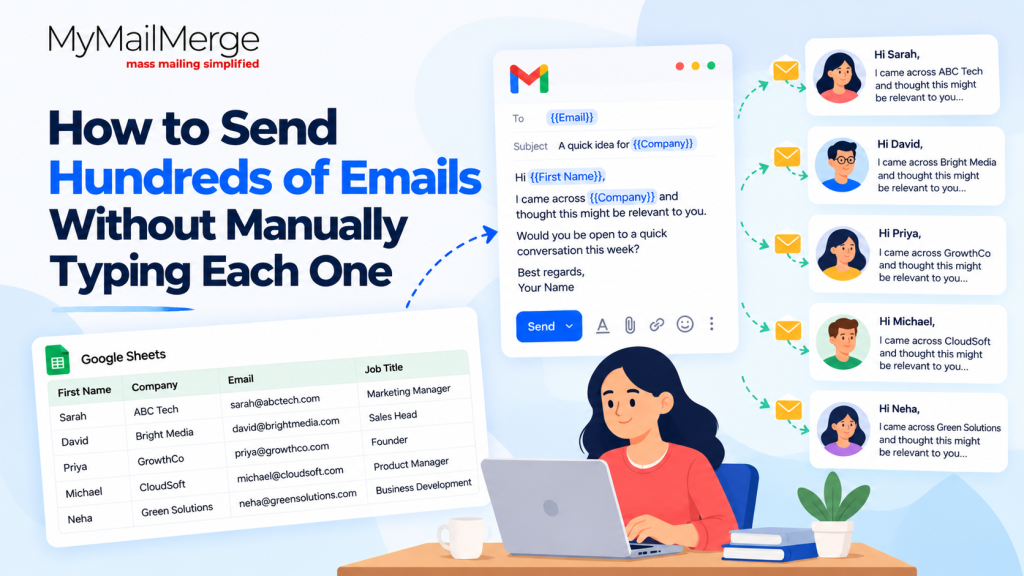
Mail merge is a process that combines an email template with recipient information stored in a spreadsheet or another data source.
Rather than writing hundreds of separate emails, you prepare one message and identify the details that should change for each recipient.
For example, your spreadsheet might contain:
| First Name | Company | Email Address |
|---|---|---|
| Priya | ABC Technologies | priya@example.com |
| Rahul | Bright Media | rahul@example.com |
| Neha | Green Solutions | neha@example.com |
You can then create a reusable email template:
Subject: An idea for {{Company}}
Hi {{First Name}},
I wanted to reach out to share an idea that may be relevant to your team at {{Company}}.
Would you be available for a brief conversation this week?
Best regards,
Your Name
The mail merge tool uses the spreadsheet data to replace each placeholder with the relevant information. Priya receives an email addressed to her, Rahul receives his personalized version, and Neha receives hers.
This means you only need to write the template once instead of manually composing each message.
What Do You Need to Send Hundreds of Emails?
Before you start, prepare these essentials.
1. An Email Account
Use a supported email account, such as Gmail, depending on the capabilities of your chosen mail merge tool.
2. A Contact List
Organize your recipients in Google Sheets or another supported spreadsheet. Keep each type of information in a separate column.
For example, use columns for first name, email address, company, job title, or any other details relevant to your message.
3. An Email Template
Write the core message that you want to send to your recipients. Keep the main content consistent while identifying the fields that should change.
4. A Mail Merge Tool
A mail merge tool connects your recipient data with your email template, helping you automate repetitive email composition. My Mail Merge is an option to explore for simplifying this workflow.
5. A Verified Recipient List
Check your contact information before sending. Use accurate addresses, contact people in accordance with applicable privacy and email marketing requirements, and ensure your message includes any required unsubscribe option.
How to Send Hundreds of Emails Without Manually Typing Each One
Follow these steps to replace repetitive email writing with a more efficient workflow.
Step 1: Create Your Contact List in Google Sheets
Start by creating a spreadsheet containing the information you need for your email campaign.
Your spreadsheet might include:
- First name
- Last name
- Email address
- Company name
- Job title
- Relevant personalization detail
Use the first row for column headings and add one recipient per row. Keep the information organized and check for duplicate or incorrect email addresses.
Tip: Use clear, consistent column names so you can easily identify the information you want to insert into your email.
Step 2: Write One Reusable Email Template
Instead of writing a separate email for every recipient, create a single template that communicates your main message.
For example:
Subject: A quick question about {{Company}}
Hi {{First Name}},
I came across {{Company}} and wanted to get in touch about an opportunity that may be relevant to your team.
Would you be open to a short conversation to explore whether it could be a good fit?
Best regards,
Your Name
This template provides a consistent starting point for your campaign. You can customize the subject line, opening, and message according to your audience and objective.
Step 3: Identify the Details That Need Personalization
Decide which parts of your email should change for each recipient.
Common personalization fields include:
- First name
- Company name
- Job title
- Product or service of interest
- A relevant business challenge
For example, an email to a marketing manager may discuss campaign performance, while an email to a sales manager may focus on lead generation.
Personalization should be relevant and accurate. Adding a recipient’s first name alone does not necessarily make an email meaningful.
Step 4: Connect Your Spreadsheet to a Mail Merge Tool
Once your contact list and email template are ready, use a compatible mail merge tool to connect the two.
With a tool such as My Mail Merge, follow the product’s supported workflow to prepare your recipient data and email template.
The general process is to:
- Select or connect your recipient data.
- Prepare the email subject and message.
- Insert the appropriate personalization fields.
- Match each field with the corresponding spreadsheet column.
- Review the message before sending.
This replaces the need to copy recipient information manually into every email.
Step 5: Preview and Test Your Emails
Before sending a campaign to hundreds of recipients, test the setup.
Check that:
- Names and company details appear correctly.
- All personalization fields match the spreadsheet columns.
- The subject line is accurate.
- Links and contact details work.
- The message displays properly on desktop and mobile devices.
- No placeholders remain unreplaced.
Send a test email to yourself or a small, appropriate test group first. This gives you an opportunity to correct errors before sending to the full list.
Step 6: Send Your Emails Responsibly
Once the setup is verified, send your campaign using the mail merge tool’s available sending options.
Keep your email provider’s sending limits in mind. The number of emails you can send depends on your account type, provider policies, and the limits of your mail merge tool.
If you’re contacting a large list, consider sending in appropriate batches where supported. Avoid sudden, excessive sending volumes, and prioritize recipients who have a legitimate reason to receive your communication.
Step 7: Review the Results
After sending, review the information available through your email provider or mail merge tool.
Depending on the tools and features available, you may be able to review delivery failures, replies, or engagement metrics.
Use these insights to improve future campaigns. For example, you may need to correct invalid addresses, revise your subject line, or make your message more relevant to a particular audience.
Can You Send Hundreds of Emails Using Gmail and Google Sheets?
Yes, you can use Gmail and Google Sheets as part of a mail merge workflow, provided you use a compatible tool and stay within the applicable sending limits.
Google Sheets helps organize recipient information, while Gmail provides the email account used to send messages. A compatible mail merge tool connects the data with the email template.
However, a spreadsheet by itself does not automatically turn a template into hundreds of personalized emails. You need a supported sending method or tool to perform the merge.
Also, Gmail’s sending limits vary by account type and may change. Check the current limits for your specific account before planning a campaign.
Why Use My Mail Merge to Simplify Email Sending?
When email outreach becomes repetitive, a mail merge workflow can help you reduce manual effort and manage recipient information more efficiently.
My Mail Merge is designed for users looking to simplify the process of preparing and sending emails using mail merge.
Rather than manually typing the same message repeatedly, you can structure your recipient information, prepare a reusable email template, and use supported personalization fields to adapt the message for individual recipients.
This approach can be useful for:
- Business outreach: Prepare personalized messages for relevant business contacts.
- Customer communication: Adapt email content using recipient information.
- Event invitations: Create individual invitations using a shared template.
- Professional follow-ups: Prepare consistent follow-up messages for appropriate contacts.
- Routine email communication: Reduce repetitive typing when sending similar messages to multiple recipients.
The exact workflow and available features depend on the product’s current capabilities and your email account.
Common Mistakes to Avoid When Sending Bulk Emails
Automating email composition can save time, but a poorly prepared campaign can still lead to mistakes.
1. Using an Unverified Contact List
Incorrect or outdated email addresses can result in failed deliveries. Review your contact data before sending.
2. Forgetting to Check Personalization Fields
A message containing {{First Name}} instead of the recipient’s actual name can look unfinished. Always test the merge before launching a campaign.
3. Sending the Same Generic Message to Everyone
A reusable template should provide consistency, not make every message irrelevant. Adapt the content to the recipient group and the purpose of your email.
4. Ignoring Sending Limits
Sending too many emails too quickly may result in temporary restrictions or deliverability problems. Follow your provider’s current policies and your tool’s limits.
5. Overlooking Email Compliance
Follow applicable email marketing and privacy requirements. Contact appropriate recipients, identify yourself clearly, and provide a functional unsubscribe method when required.
6. Skipping the Test Email
Even a well-prepared template can contain formatting problems or incorrect field mappings. Test before sending to the complete list.
Conclusion
Sending hundreds of emails does not have to mean typing hundreds of separate messages.
By combining a well-organized spreadsheet, a reusable email template, and a compatible mail merge tool, you can reduce repetitive work while keeping your communication organized and personalized.
The key is to prepare accurate recipient data, use relevant personalization fields, test your messages, and follow your email provider’s sending limits.
If you’re looking to simplify repetitive email sending, explore My Mail Merge and see how a mail merge workflow can help you prepare personalized emails more efficiently.
Spend less time typing emails and more time focusing on the conversations that matter.
Frequently Asked Questions
1. How can I send hundreds of emails without typing each one?
You can use a mail merge tool with a spreadsheet and a reusable email template. The tool uses recipient data to personalize and prepare individual messages without requiring you to compose each one manually.
2. Can I send hundreds of personalized emails from Google Sheets?
Yes. Google Sheets can store recipient information such as names, email addresses, and company details. A compatible mail merge tool can use that information to personalize emails.
3. Is mail merge suitable for beginners?
Yes. Many mail merge tools offer workflows that do not require programming. You generally need a properly formatted contact list, an email template, and a supported email account.
4. Can I send bulk emails using Gmail?
Yes, subject to Gmail’s current sending limits and account policies. You can use a compatible mail merge tool to send individual messages based on spreadsheet data.
5. Is mail merge better than using BCC?
For personalized communication, mail merge is generally more suitable because each recipient can receive a separate message with their own details. BCC is more appropriate when sending one shared message to multiple recipients who do not need individualized content.
6. Will mail merge guarantee that every email reaches the inbox?
No. Mail merge automates the sending workflow, but it cannot guarantee inbox placement. Delivery depends on factors such as sender reputation, recipient address quality, email content, authentication, and provider policies.